
Use the dashboard
The dashboard shows in a browser what shipwick shows in a terminal, and offers the everyday actions: deploy a new application or another version, roll back, stop, start, delete, run a job or a command, take, verify and restore a backup, store a secret, log the server in to a registry, supply a certificate, manage tokens and who may sign in, read and export the audit trail, rotate the encryption key, download an export, import one, and promote a standby.
This page covers enabling it, signing in, how it is laid out, what each page and tab shows, the output of containers that ended, deploying a new application from it and changing the configuration of one, what each role can do, using it without a mouse, several servers in one dashboard, and how it handles the API token. The layout described here is the one of 0.6; what 0.7 added is marked as such.
The dashboard is a client of the agent's HTTP API and nothing more. It has no database and keeps no state of its own. Anything it does, shipwick and curl can do too.
Enable the dashboard
The installer sets up the dashboard container on every server. It becomes reachable once it has a hostname.
If you gave the installer a dashboard hostname, open https://<that hostname>, or run shipwick open --dashboard. The installer printed the address when it finished.
If you skipped the question, add the hostname afterwards. On the server, set it in /opt/shipwick/.env:
SHIPWICK_DASHBOARD_DOMAIN=dashboard.example.comThen apply the change:
cd /opt/shipwick && docker compose up -dPoint the hostname's DNS at the server. Caddy obtains the certificate and serves the dashboard over HTTPS; the agent configures the route. The hostname must be a bare name such as dashboard.example.com, and different from the API hostname.
The dashboard container publishes no port. It is reached only through Caddy.
Sign in
There are two ways in.
With an API token: one of its own, shipwick token create dashboard --role admin, which the installer's summary and shipwick server install name since 0.9 — not the root token from /opt/shipwick/.env, which is root on the server and never leaves it. A session with a token lasts 7 days.
With your company's account, since 0.6, when the agent has a sign-in provider: the page offers Sign in with the provider above the token field. What you may do is what the server's access rules give your address, your groups or your domain, and the session lasts ten hours. See Sign in with your company's accounts.
There are no accounts of the dashboard's own, and it has no credentials of its own: whoever signs in brings a token or a session of the agent's.
What you see and may do follows the role, which the dashboard learns from the agent when you sign in and shows in the sidebar next to the name:
| Role | In the dashboard |
|---|---|
read | Sees everything: applications, replicas, metrics and their history, traffic, deployments, events, logs, jobs and their runs, volumes, backups, the names of the secrets, the registries and supplied certificates without their passwords and keys, the server with its disk and alerts, and what a standby holds. Every action is disabled, with the reason, and the page says that this sign-in cannot change anything |
deploy | Also deploys a new application or another version, changes an application's configuration, rolls back, stops, starts, runs a job, runs a command, takes a backup and verifies one |
admin | Also deletes applications, downloads, restores, removes and adopts backups, stores and removes secrets, logs the server in to a registry and out of it, adds and removes certificates, removes the volumes of deleted applications, backs up the agent's state, writes an export to the backups, downloads an export as a file and imports one, imports the newest export on a standby and promotes it, rotates the encryption key, and gets the Access page |
A deploy token or rule limited to some applications acts on those: the page of every other application says in words that it can be looked at and not changed.
A token that expires says so in the sidebar from fourteen days before. If the agent rejects the sign-in at any point — the token was revoked or has expired, the session ran out, an admin ended it or its rule changed — the dashboard returns to the sign-in page with the agent's sentence about why.
Find your way around
The navigation has three groups:
| Group | Pages |
|---|---|
| What runs | Overview, Applications, Deployments, Logs |
| Server | Status, Volumes, Certificates |
| Settings | Secrets, Registries, Access |
The server's name sits above the navigation. The Status entry carries the number of alerts that hold.
An application's page, the server's page and Access are tabs with addresses of their own: /applications/my-api/backups opens the Backups tab of my-api, and can be bookmarked or sent to someone. Addresses from before 0.6 — /tokens, /secrets, /registries — lead to the pages they became.
| Page | |
|---|---|
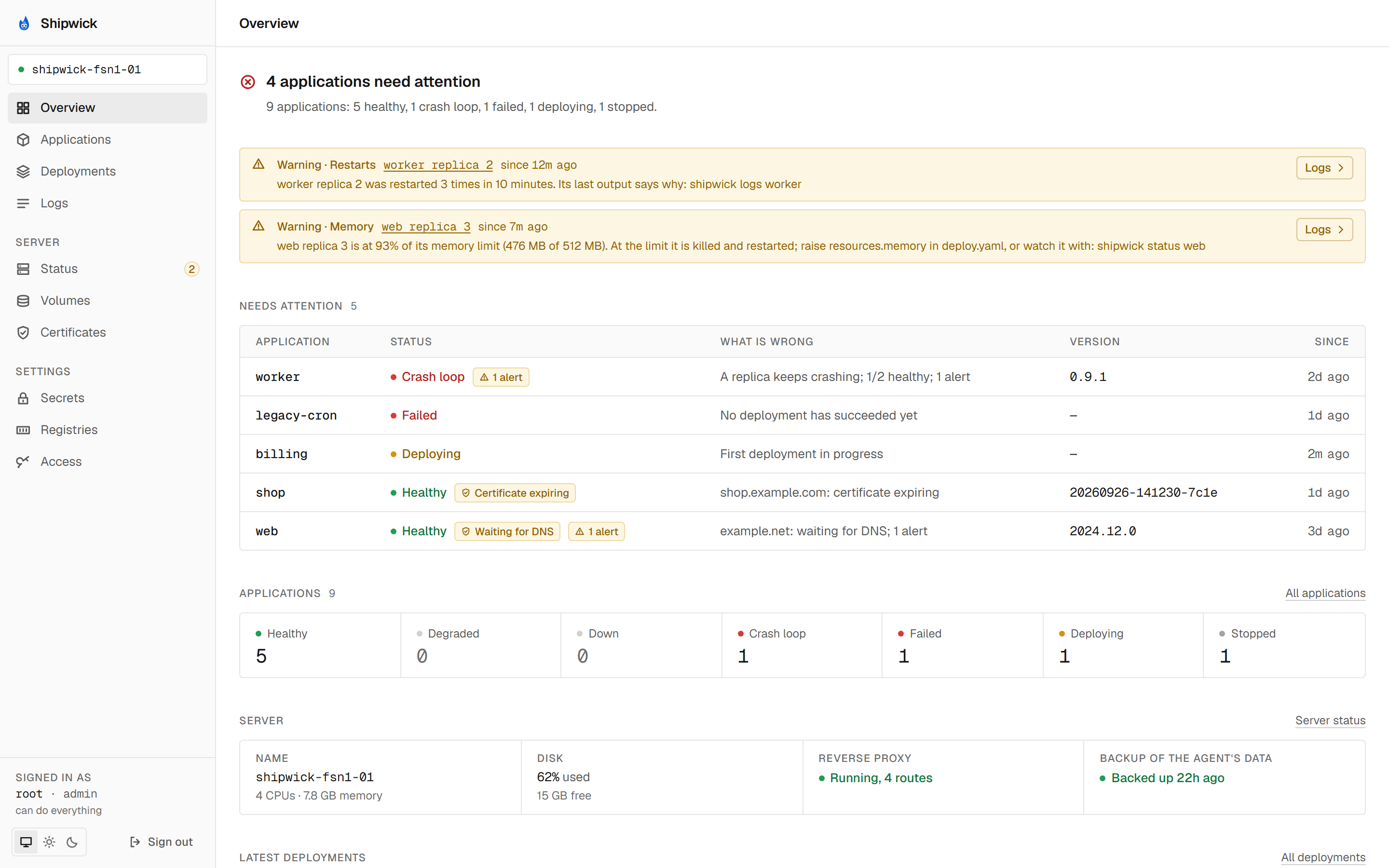
| Overview | One sentence that answers whether everything is fine: how many applications need attention, or that everything that should run is healthy. Then the alerts that hold right now, the applications that need attention with what is wrong with each, the count per status, the server in four facts — its name, its disk, the proxy, the backup of the agent's data — and the latest deployments. On a server without applications it shows the three commands that deploy the first one |
| Applications | Every application with its status, version and address, and New application in the header. One that runs but has an alert, or a hostname whose certificate is not in order, is marked with a few words next to its status; since 0.9 a certificate the proxy could not obtain or renew says why under its hostname |
| Deployments | The deployment history across applications, or of one. A deployment's page shows its progress step by step, its outcome, where it came from and who made it |
| Logs | Followed logs of one application. Replicas are tailed together and merged by time. Static applications have no logs and are not offered |
| Status | The server: a newer release when there is one, its alerts, its disk, the proxy, notifications, the log archive. See The server. Since 0.9: the proxy's missing networks with the command that puts it back, the kernel's table of neighbours next to the count of containers, and what the Cloudflare token's check found, with Check again for admins |
| Volumes | Every volume on the server with its application and size, in use or application deleted. An admin removes the volume of a deleted application here |
| Certificates | The certificates you supplied: the name each is stored under, the hostnames it covers, its issuer and its expiry, marked in its last 30 days. Never the key. An admin adds, replaces or removes one here |
| Secrets | The secrets kept on the server for ${NAME} in env: names and dates, never values. An admin stores, replaces or removes one here. Since 0.9 each has a scope — the server or one application — and the page stores one for either; see Keep secrets on the server |
| Registries | The registries the server holds a credential for: name, username and dates, never passwords. An admin logs the server in to a registry, replaces a credential or logs out here |
| Access | Admin only: API tokens, who may sign in, the audit trail. See Access |
An application's page
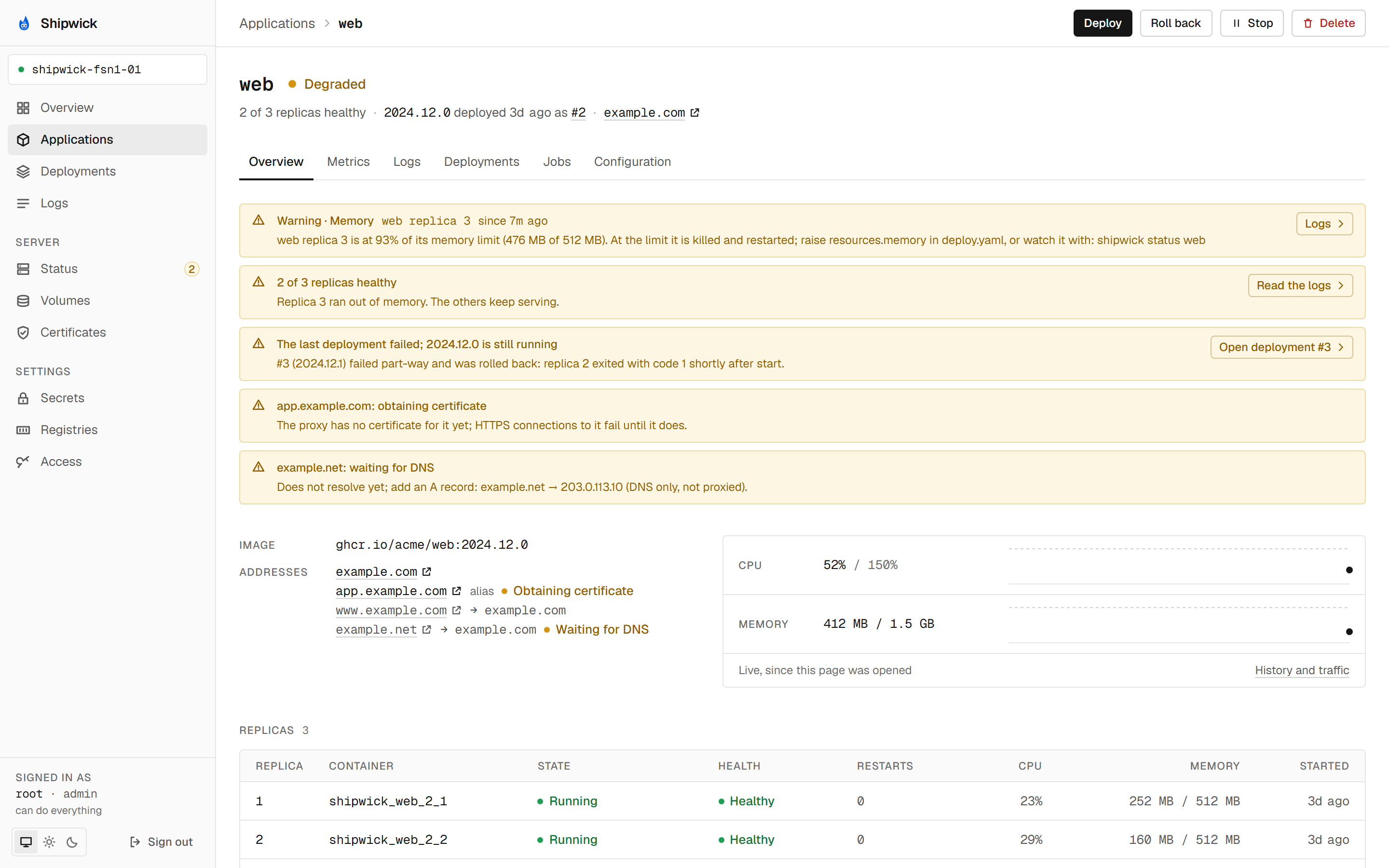
The header carries the application's name, status, version and address, and the actions on every tab: Deploy, Roll back, Stop or Start, Delete.
| Tab | What is there |
|---|---|
| Overview | What is wrong and where to look, the deployment in progress, live CPU and memory, the image and the addresses, the replicas, the latest deployments, events |
| Metrics | What the proxy saw — requests, errors and response times over an hour, a day or a week, and the most recent requests — and CPU and memory over the same windows |
| Logs | The replicas' output, followed, and since 0.7 the output of containers that ended. See The Logs tab |
| Deployments | Every attempt, with its origin and who made it |
| Jobs | Scheduled jobs, their runs, Run now and Run command |
| Backups | For an application with volumes: the backups the server took — take one, verify one, download a volume of one, restore one into the stopped application — and the volumes themselves |
| Configuration | The deploy.yaml of the version that runs, its proxy block included, read-only, and Change the configuration |
A tab an application cannot have is not listed: a static application has no Logs or Jobs tab, and an application without volumes no Backups tab.
What is wrong, first
The overview tab opens with findings, each with the link to where the answer usually is:
- the agent's alerts about the application: a replica near its memory limit, one that keeps being restarted;
- a replica that keeps crashing, or no healthy replica;
- a deployment that failed while the previous version still runs, with the link to that deployment;
- a hostname whose certificate is being obtained, waits for DNS, is about to expire or has expired, with the agent's own sentence about it, and since 0.9 the proxy's reason when it could not obtain or renew one, and Renewal failing when it serves while the renewal fails;
- since 0.9, what the agent found when it asked for the application through the proxy after the running deployment: a redirect loop as a warning, an answer as a line of the deployment's timeline;
- a proxy that is off.
A finding an alert already states is not repeated. An application with nothing wrong shows none.
The Logs tab
Since 0.7 the tab has four views, each with an address of its own:
| View | |
|---|---|
| Live | The output of the running replicas, followed. |
| Previous | The last output of the container that ended most recently. The tab opens on it when the application is not healthy and a replica crashed, was killed for memory or was restarted for its health check. |
| Archive | What the agent kept of ended containers and runs: when and why each ended, how many lines. An entry opens to its output. |
| Search | Looks through all of it, and the running replicas, for a piece of text. |
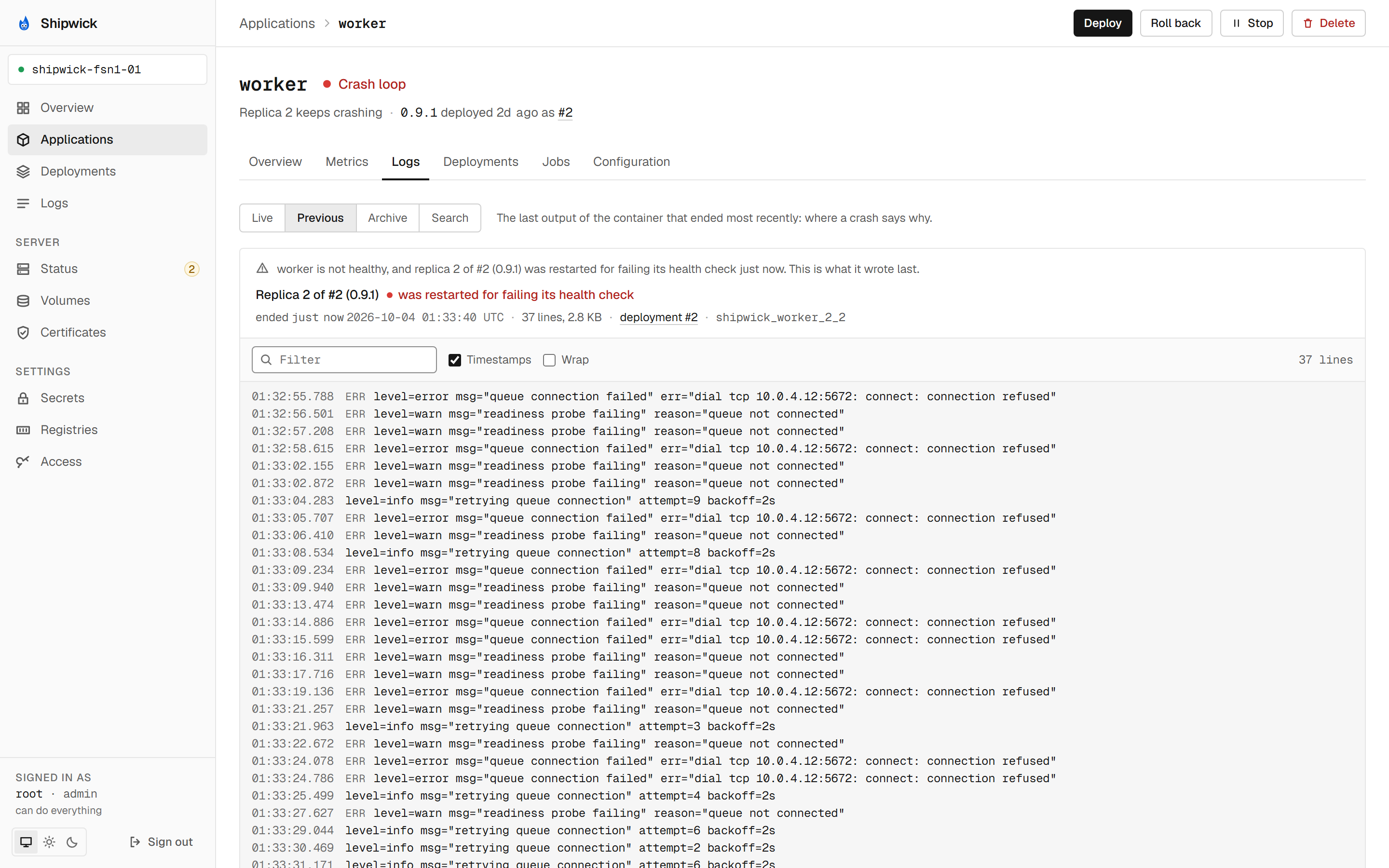
On the overview tab, a replica that restarted links to its last output, and the page of a failed deployment links to the output of its replicas. What is kept, for how long and where is in Find out why it died. With an agent before 0.7 the tab shows the live output only.
Things to know when reading it
- A deployment has three possible outcomes.
ACTIVEis the only success.FAILEDmeans the previous version was never touched.ROLLED_BACKmeans the deployment failed part-way and the previous version was restored; it is shown as a handled failure, never as a success. - Every history entry shows its origin, such as "rollback to #3 1.4.0" or "redeploy of #6", linked to the deployment it came from, and the name of the token or the address of the person that made it. A deployment made by
shipwick importreads "imported", and one a standby holds until it is promoted "imported, stopped". - A deployment started elsewhere — from
shipwickor from CI — can be followed live from the application's page. - An application's address is its domain and its
path, wherever it is shown:example.com/apifor an application that serves only that part of the hostname. - A container that is stopping reads "Stopping". After a deployment, a container that was sent
SIGTERMand still has itsdeploy.stop_timeoutto exit is listed below the replicas as such, and does not count as a replica. - CPU is in percent of one core, with the application's limit as the ceiling. An application without a CPU limit has no ceiling.
- Two kinds of metrics. The sparklines on the overview tab are built in your browser while the page is open. The charts on the Metrics tab come from the agent, which records every running replica's CPU and memory every 30 seconds and keeps 7 days: one line per replica for the last hour, day or week, a dashed line at the per-replica limit, and a gap wherever nothing was sampled — while the agent was down, for instance. Nothing is interpolated.
- Traffic is what the proxy saw. The Metrics tab shows, for the last 1h, 24h or 7d, the totals — requests, 5xx, 4xx, the 50th, 95th and 99th percentile of their durations, bytes sent — and two charts: requests per step with the 5xx among them, and the 95th percentile. Recent requests opens the last 200 one by one, newest first, as the proxy logged them: paths without their query string, no headers. The agent keeps those in memory, so the list starts empty when the agent starts. A static application has traffic like any other; an application without a domain has none.
- The configuration is shown by kind. A health check reads
GET /health,TCP :5432orcommand pg_isready -U postgres,after a 2m start periodwhenstart_periodis set; hostnames as the domain, its aliases andwww.example.com → example.comredirects; published ports as5432/tcp → server port 15432 on 10.0.0.5;entrypointandcommandjoined with spaces; an image built by the CLI asbuilt by shipwick deploy from . (Dockerfile); thebackupsschedule asshipwick validatewords it. Theproxyblock shows the path and whether it is removed before a request reaches the application, the response headers, the redirects, and which path asks for the password of which account; passwords are never returned. - Jobs are in UTC. The Jobs tab lists each job's schedule, its last run with outcome and exit code, and its next run relative to now; a stopped application reads "Not while stopped". The run history covers scheduled runs, one-off commands and pre-deploy commands alike, and a run opens to show its output.
- Static applications are folders the proxy serves itself. The list shows
staticin place of the replica count, the version is the folder's digest, and the application's page says what is served instead of replicas (42 files, 3.1 MB, served by the proxy), with the fallback page whenstatic.fallbackis set. Stop, start, rollback, redeploy and delete work. - Shipped logs. When an application's
loggingdriver sends logs elsewhere, the log viewer says so and shows the local copy Docker keeps. - A followed stream is taken up where it stopped. Since 0.9, a stream that is cut, or ended by an agent restarting for an upgrade, is resumed after a second, then two, four, eight and sixteen, without a line lost or repeated; after that the viewer says so and offers Reconnect. Forty-five seconds without a line or a sign of life from the agent are marked stale in the status line.
Deploy a new application
Since 0.6 an application can be deployed from the dashboard. New application, in the header of the applications list, takes a pasted deploy.yaml.
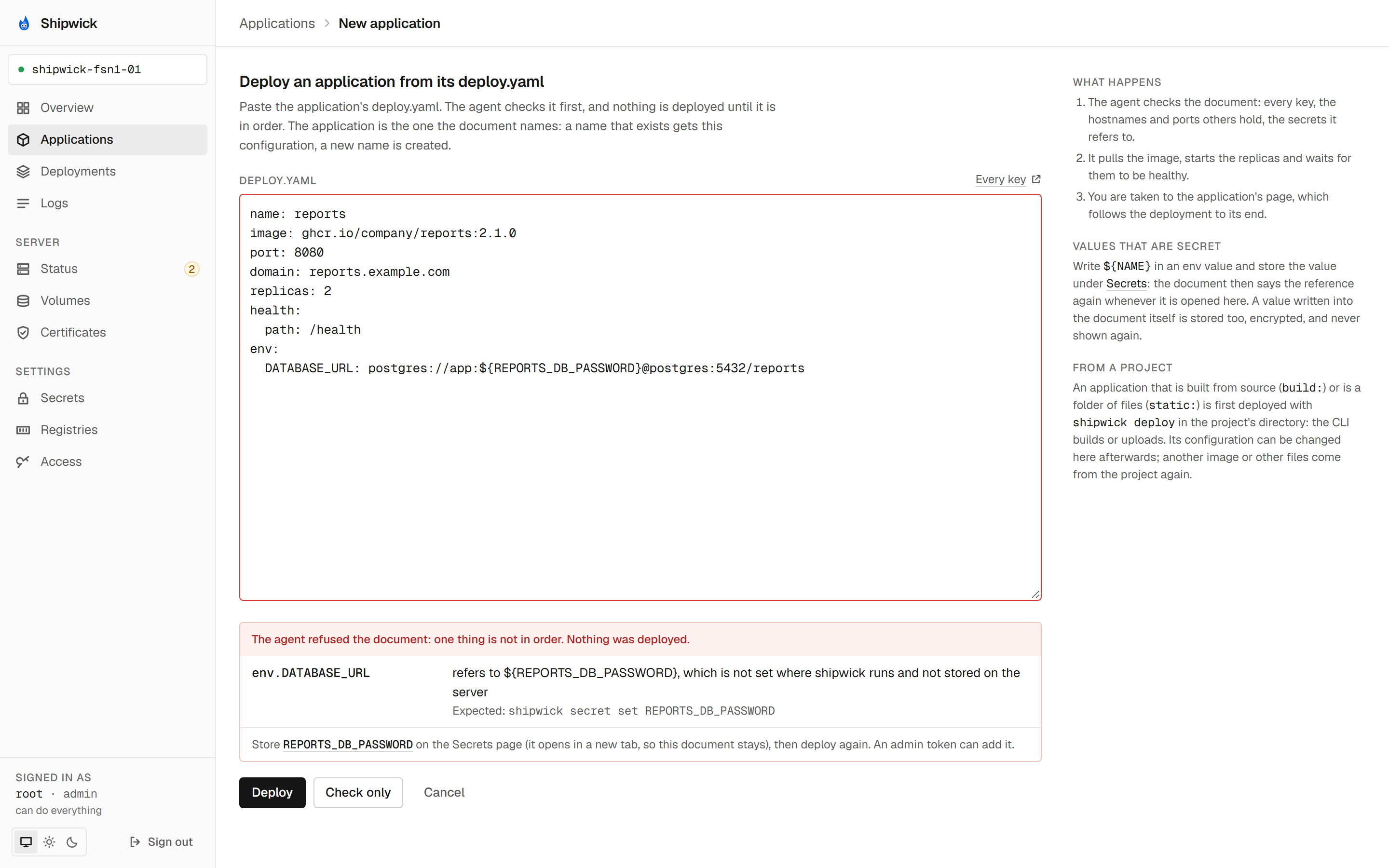
- Paste the document. Check only has the agent check it without deploying.
- The page lists every field the agent refuses, with what it expects. A secret the document refers to and the server does not have links to the Secrets page with its name filled in.
- When the document is in order, Create and deploy deploys it, and the application's page follows the deployment.
This is for an image that is in a registry. A document with build: or static: is told that it is deployed with shipwick deploy from the project's directory, because the dashboard has neither a project to build from nor a folder to upload.
The application is the one the document names: a name that exists gets this configuration, a new name is created.
To deploy another version of what runs, with nothing else changed, use Deploy in the application's header: it takes the image.
Change the configuration
Since 0.7 Change the configuration, on an application's Configuration tab, opens the application's deploy.yaml as the agent gives it back — what shipwick config prints. Before 0.7 the page started empty, and the document had to come from the project.
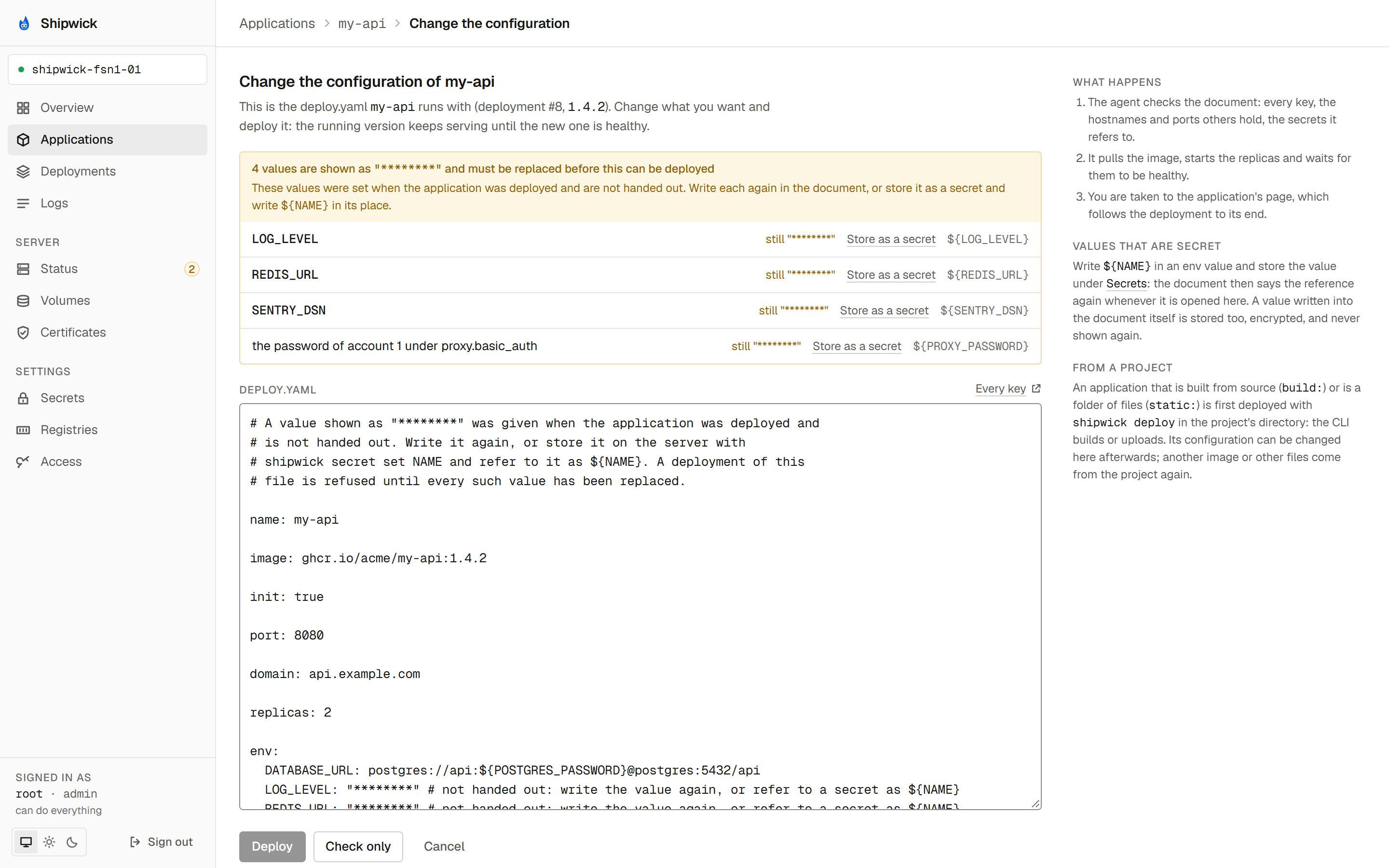
- References to stored secrets are references: a value that was written as
${NAME}and filled in from the server's secrets is that text again. - The values that stood in the deployed file in plain sight are there, since 0.8: an
envvalue thatshipwick deployfound written in the file, such asLOG_LEVEL: debug. A plain value that is left as it was stays plain; one that is changed or typed here is masked from then on, until the file it belongs in is deployed withshipwick deploy. - Every other secret value stands as
"********"and is listed above the document, each with a link that stores it as a secret and the reference to write in its place. Anenvvalue and a basic-auth password are secret to the agent unless their deployment said otherwise. - The document is checked and deployed from there. One that still holds a mask is refused, with the fields that need a value.
- The editor names what it masks. Since 0.9, a plain value that is changed or typed here is listed next to the document, before the deployment is sent, as one that is masked from then on.
An application that is built from source (build:) or is a folder of files (static:) is first deployed with shipwick deploy in the project's directory. Its configuration can be changed here afterwards; another image or other files come from the project again.
What you can do
From an application's page:
| Action | Equivalent | Needs |
|---|---|---|
| Deploy another image | shipwick redeploy --image … | deploy |
| Change the configuration | shipwick config, then shipwick deploy | deploy |
| Roll back, to one of the listed targets | shipwick rollback --to N | deploy |
| Stop, start | shipwick stop, shipwick start | deploy |
| Run a job now | shipwick jobs run <app> <job> | deploy |
| Run a command | shipwick run <app> -- <command> | deploy |
| Back up now | shipwick backups run | deploy |
| Verify a backup | shipwick backups verify | deploy |
| Download a volume of a backup | shipwick backups download | admin |
| Restore a backup | shipwick backups restore | admin |
| Remove a backup | shipwick backups rm | admin |
| Adopt backups | shipwick backups adopt <app> | admin |
| Download a volume as a tar archive | shipwick backup | admin |
| Restore a volume from an archive | shipwick restore | admin |
| Delete | shipwick delete | admin |
The rollback dialog lists exactly the deployments that are valid targets: the ones that once served successfully and were replaced. "Run command" takes the command one argument per field, because the agent takes a list and never a shell string; the run is followed until it finishes and its output shown. The deploy dialog offers no image field for a static application, nor for one with build, whose image is built and sent by shipwick deploy.
On the Backups tab, Verify restores a backup into scratch volumes and starts one container on them, beside the application; opening the backup shows the verdict and the container's output. From there an admin downloads a volume of it, removes it, or restores it, which is offered only while the application is stopped and is confirmed by typing the application's name. A restore from a file of your own is offered only while the application is stopped, checks that the file is a tar archive before uploading, and offers Start when the agent reports the volume restored. See Back up and restore volumes.
From the Secrets page: store or replace a secret from a password field, whose value is cleared from the page as soon as the request is sent, for the server or, since 0.9, for one application — the server's applications are offered and another name can be typed — and remove one; shipwick secret set, shipwick secret set --app, shipwick secret rm; all admin. The page says when a value holds a character a URL cannot carry as it is, without repeating the value; removing an application's own secret says that the server-wide one of the same name answers from then on. See Keep secrets on the server. From the Registries page: log the server in to a registry with a username and a password or token, which the agent checks against the registry before it stores anything, and log out — shipwick registry login, shipwick registry logout; both admin. From the Certificates page: add or replace a certificate by pasting its chain and its private key, which is cleared from the page as soon as it is sent, and remove one — shipwick cert set, shipwick cert rm; both admin. From the Volumes page: remove the volume of a deleted application — shipwick volumes rm, admin.
A deployment refused because a secret is not stored links to the Secrets page with the name and, since 0.9, the application filled in, and one whose image a registry refused links to the Registries page with the registry filled in.
Controls the role does not cover are disabled with the reason. The roles are enforced by the agent, not by the page: a request the role does not cover is answered 403 whatever the browser sends, and the dashboard shows the agent's own explanation, such as "This token has the read role; deploying needs deploy or admin".
Stopping or deleting an application waits as long as the agent does, which with a long deploy.stop_timeout can be minutes.
What still needs the CLI is what needs the project's directory: the first deployment of an application that is built from source or is a folder of files. Until 0.7 an export to a file and an import needed it too; they are on the server's page now.
The server
The server's page has four tabs:
| Tab | What is there | Actions, all admin |
|---|---|---|
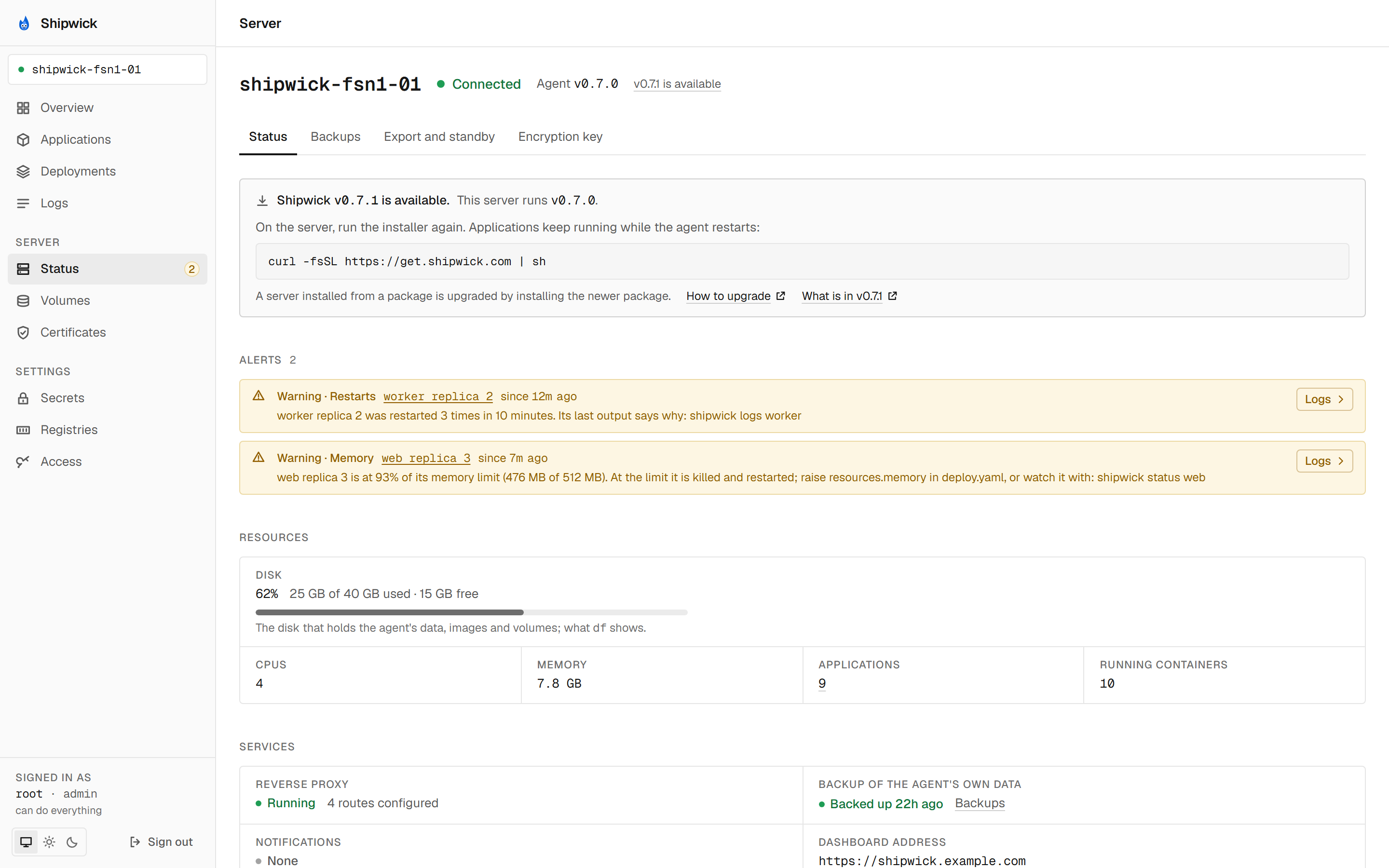
| Status | A newer release when one exists, the server the agent runs on, its memory and since 0.8 its swap, the active alerts, how full its disk is, whether the agent reaches Caddy, whether a notification webhook is configured, the dashboard's address, what the log archive holds | |
| Backups | Where backups are kept, whether they are encrypted, how the agent's own state is backed up, and the backups of it | Back up state now (shipwick server backup), Adopt backups (shipwick backups adopt) |
| Export and standby | The exports kept with the backups, the last import, and on a standby what waits there | Download an export… (shipwick export), Export to backups (shipwick export --to-backups), Import a file… (shipwick import), Import newest now (shipwick standby pull), Promote… (shipwick standby promote) |
| Encryption key | When the key was last rotated | Rotate encryption key (shipwick server rotate-key) |
- Status names the proxy the agent leaves the server through when one is set, with the other network settings — authorities of its own, the name servers it asks, an ACME server of your own — and warns when the agent has a proxy and the Docker daemon has none. On a server with a plain connection the row is not shown. See Run behind a corporate proxy or without internet.
- A proxy that is not Shipwick's (since 0.8). When the proxy is not Shipwick's image of this version — the proxy of an older release, the official Caddy image, an image of your own without Shipwick's part — the Status tab says so. See A proxy image of your own.
- A newer release (since 0.7). When the agent knows of a release newer than itself, the Status tab opens with a notice: the version, the command that upgrades, and links to how to upgrade and to what is in the release. The agent asks GitHub once a day; the dashboard itself asks nobody.
SHIPWICK_UPDATE_CHECK=offon the agent turns the question off, and the notice with it. See Upgrade Shipwick.
- An export as a file, and an import (since 0.7). Download an export… asks for a passphrase of your own, typed twice, and downloads everything the server runs as one encrypted file; Import a file… takes such a file and its passphrase and deploys what it holds. Both pass through the dashboard's server as they arrive: it holds neither the file nor the passphrase. The page cannot see why a download ended, so a download that breaks off is a file the import refuses. An import is one upload that lasts as long as the import; the page has to stay open. See Move to a new server.
- Backups reads "Not backed up" without
SHIPWICK_BACKUP_PASSPHRASE, and Back up state now is disabled. Adopt backups records the backups that the directory and the bucket hold and the database does not know, and lists what was adopted and what was left alone; see Bring a lost server back. - A promotion is followed. Promote… asks you to type
promote. The promotion is started and then shown as it runs — a row per application, and the DNS records to change from the first moment — and it goes on when the page is closed; opening the page while one runs shows it. See Keep a second server ready. - Rotate encryption key has the agent generate a new key and re-encrypt everything stored under it; nothing is deployed and nothing restarts. Where the key is set in the agent's environment, the new key is shown once, with the line to put into
/opt/shipwick/.env. See Rotate the encryption key.
Access
Access, for admins, has three tabs:
| Tab | |
|---|---|
| API tokens | The tokens with their roles, the applications each is limited to, when each expires and when it was last used. Creates one: applications can be chosen for the deploy role, and an expiry of 30, 90 or 365 days or a date. The new token's value is shown once, in the page, and never stored. Since 0.7 Edit in a token's row changes the applications a deploy token is limited to, and its end; the value and the role stay. Revokes one. See Create tokens for CI and teammates |
| Sign-in | The rules that say who gets which role when they sign in through the provider, a form that gives an address, a group or a domain a role — or a name, where the agent names people by another claim than their address — and who is signed in now. See Sign in with your company's accounts |
| Audit trail | Who did what, from which address and how it was answered, with the deployment an entry made linked. Filtered by application, name and time, and since 0.7 by kind of action, by result and by tokens or people; exported as CSV or as one JSON object a line. See See who changed what |
Without a mouse
Since 0.7 every page and dialog works with the keyboard alone. Tab reaches every control in the order of the page, the first stop is a link that skips the navigation, and the control that has the focus is outlined in both themes. A dialog takes the focus, keeps it, closes on Escape and gives it back to the button that opened it. The theme and a chart's range are chosen with the arrow keys. A screen reader is told the page's title when the page changes, every step of a deployment that is followed, how a run, a backup or a promotion ended, and when the data on screen stops being live; each chart has its numbers as a table under Show as table. On a touch screen every control is at least 44 by 44 px, and a table becomes a list of cards wherever the page's column is narrow: on a phone, and beside the sidebar on a tablet. Since 0.8 what a tooltip says — the date and time behind "3m ago", why a button cannot be used — shows on keyboard focus and on a tap as well as under the pointer, goes away with Escape, and is the element's description for a screen reader; a button that is off for a reason stays a Tab stop so that the reason can be read. A tooltip that only repeats what is on screen, such as a cut-off line in full, is for the pointer and a tap. Text that was too faint to read reliably is darker, and the edge of a field has the contrast a field needs. Animations stop when the system asks for reduced motion. This was checked with the keyboard, the browser's accessibility tree and an automated checker, in both themes; it has not yet been used with a screen reader by someone who works with one every day.
Several servers in one dashboard
Since 0.6 one dashboard can show several servers. Set SHIPWICK_AGENTS on the dashboard to name=URL pairs:
# /opt/shipwick/.env on the server whose dashboard you use
SHIPWICK_AGENTS=production=http://agent:9000,staging=https://agent.staging.example.com
Then cd /opt/shipwick && docker compose up -d.
- Each server has its own sign-in, kept in a cookie of its own, and signing out of one leaves the others.
- The box under the logo names the server a page is about and switches between them;
/serverslists them. - Every address carries its server:
/applications/web?server=staging. A link someone shares opens on the server it was copied from, asks for a sign-in there if there is none, and says so when the dashboard has no server by that name. - A URL in the list is the agent as the dashboard's server reaches it, the same address
shipwick login --urltakes: the other server's agent needs a hostname (SHIPWICK_AGENT_DOMAIN) or a private network between the two.
Names are lowercase letters, digits and dashes, and there can be at most 20. With one server nothing changes: no parameter, the same cookie, the same addresses.
How the dashboard handles the token
An admin token is equivalent to root SSH access to the server, so the dashboard keeps every token out of the browser's reach.
browser ── same origin ──▶ dashboard server ── Bearer token ──▶ Shipwick agent
           cookie session
no token in JS- The browser never talks to the agent. The dashboard's own server relays requests to it and adds the token.
- When you sign in, the dashboard server verifies the token against the agent and stores it in an
httpOnlycookie withSameSite=Strict, andSecureover HTTPS. JavaScript cannot read it, so a cross-site scripting bug or a malicious browser extension cannot steal it. The application only knows whether a session exists and, from the agent'sGET /server, the name and role. - Signing in through a provider keeps the client secret on the agent: the dashboard's server only starts the sign-in and passes the provider's code on. The session the agent answers with is kept in the same cookie, for as long as the session lasts.
- Nothing is kept in
localStorageexcept the theme and, with several servers, the name of the one used last. A token created on the Access page is shown once and never stored. - The token is never logged, by the relay or by the session routes.
- Every state-changing request must carry a custom header that a cross-origin page cannot add, and the server never grants the CORS preflight that would allow it.
- The relay is not an open proxy. Its target comes only from the dashboard's configuration — a request chooses among the configured servers and never supplies an address — and only paths under the agent's
/api/v1/are accepted. A volume archive is streamed through it both ways, never buffered, and so is a secret's value; the agent's own limits apply. An export that is downloaded and a file that is imported pass through the same way: the dashboard's server keeps neither the file nor the passphrase. - The relay passes the browser's address to the agent as
X-Forwarded-For, so that the audit trail names who asked and not the dashboard. - The dashboard makes no request to any third party: no CDN, no analytics, fonts bundled. In production it sends a Content-Security-Policy of
default-src 'self'.
Because the browser talks only to the dashboard, the agent needs no CORS support and can stay off the public internet. You can run the dashboard on a hostname and still keep the API private.
Serve the dashboard over HTTPS only
Signing in sends the API token to the dashboard server. Over plain HTTP on anything but loopback, that is a credential in clear text — with an admin token, a root credential. The installer's setup always serves the dashboard through Caddy with a certificate.
Failed sign-ins are slowed down by the agent: after 20 failed authentications within a minute from one address, wrong tokens are answered 429 for a minute, and the sign-in page reads "Too many failed attempts from this address; try again in a minute". A valid token is never refused.
Run the dashboard yourself
The installer's setup needs none of this. If you run the dashboard some other way, it is configured with environment variables:
| Variable | Default | |
|---|---|---|
SHIPWICK_AGENT_URL | http://127.0.0.1:9000 | Base URL of the agent, as seen from the dashboard server |
SHIPWICK_AGENTS | — | Several servers, as name=URL pairs separated by commas or spaces. Set, it replaces SHIPWICK_AGENT_URL. Since 0.6 |
SHIPWICK_COOKIE_SECURE | auto | true or false to force the cookie's Secure flag. Auto: on when the request is HTTPS, directly or according to X-Forwarded-Proto |
HOST, PORT | 0.0.0.0, 3000 | Listen address |
There is no token variable, on purpose: the dashboard does not know the token until someone signs in with it.
Behind your own reverse proxy, make sure it forwards X-Forwarded-Proto, so the cookie gets its Secure flag, and that it does not buffer responses, or followed logs arrive in bursts. Caddy forwards the header.
What's next
- Create tokens for CI and teammates: a
readtoken for whoever only needs to look. - Sign in with your company's accounts: no tokens for people.
- Security explains what a token is worth and how to protect it.
- See what is running covers the same ground from the terminal, and Find out why it died the output of containers that ended.
- Back up and restore volumes, from the dashboard or with
shipwick backupsandshipwick backup. - See what the proxy served, alerts and metrics, certificates and private registries: the same from the terminal.